Fing Guides
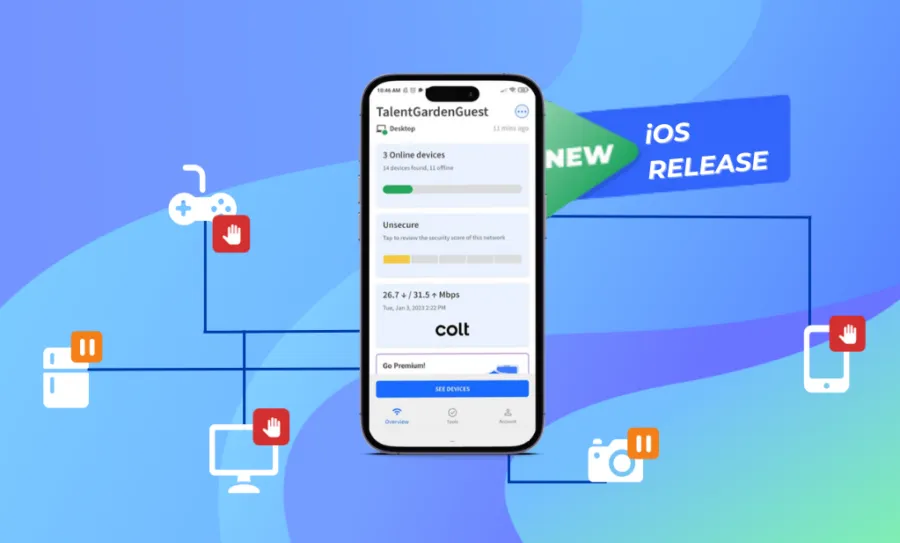
How to Gain Full Control of Your Network with the Fing iOS App
Ready to get more control over your network and devices? Fing’s newest update for iOS brings new Premium features that let you take charge of your home network’s Internet access control, directly from your iPhone! You can now block network access and autoblock new devices, set time limits on internet access, and schedule internet downtime even from your iOS devices. That’s powerful stuff! Keep reading to learn more about these...
Getting Started: Your First Five Minutes with Fing
New at using Fing? Don’t know where to begin to secure your network? Don’t worry, we have you covered with our getting started guide! Let us walk you through your first five minutes with Fing. See All the Devices Connected: The Network Scan The first thing you should do with Fing is scan your network to see all the devices connected. Simply open the app and run the scan: it...
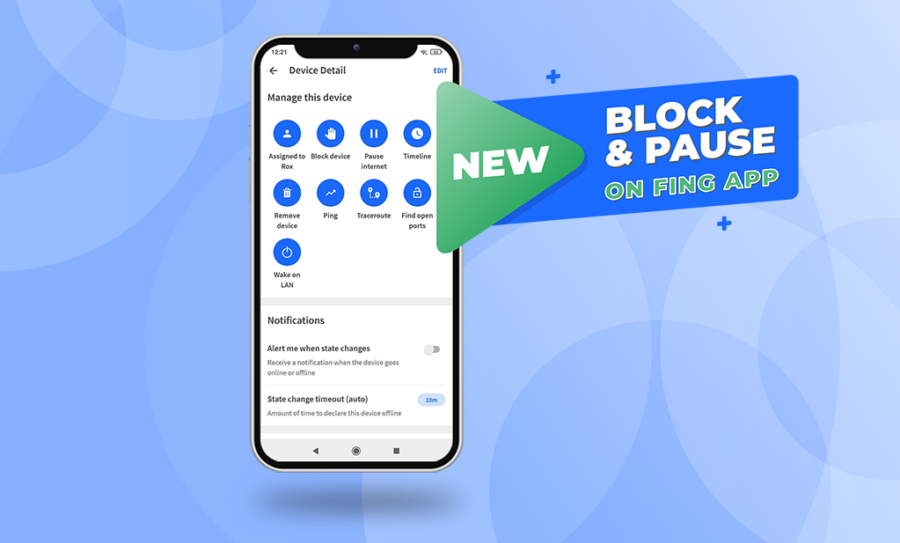
How to Restrict Internet Access Directly From Your Phone
And it’s live on mobile too! You read it correctly: the Block & Pause Preview is now also available on all mobile Fing apps. After first releasing the Block & Pause features on Fing Desktop, we are excited to announce you can monitor your network and restrict access to it directly from your phone, wherever you are. Let’s see how! Block & Pause Preview on mobile The Block & Pause...
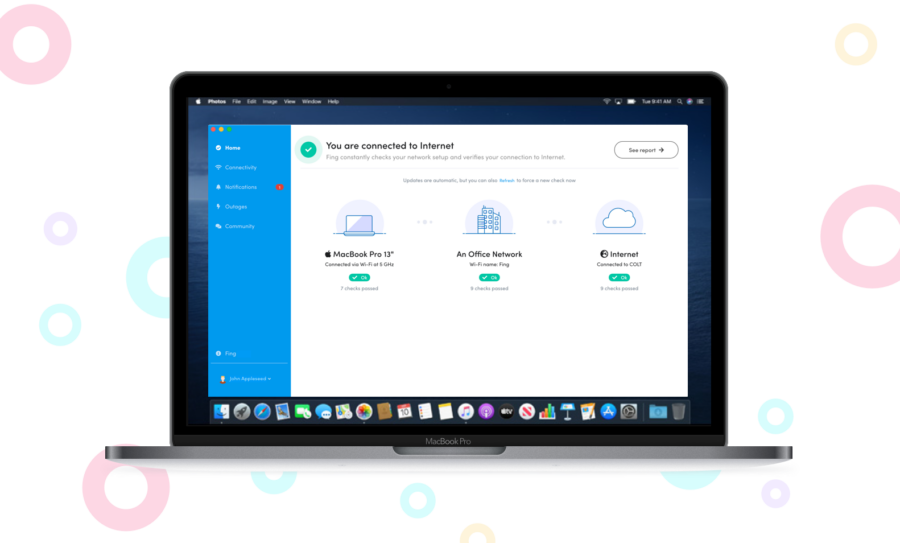
How to recognize all the devices connected to your Wi-Fi with Fing
Everything is connected today: laptops, smartphones, smart TVs, game consoles, home assistants. But how can you see how many devices are connected to your network? And how can you check if intruders are stealing your bandwidth? You might think you know every tool connected to your Wi-Fi, but remember that nowadays a lot of unusual devices have the ability to get into your network. An example is smart kitchen appliances,...
How to Block Network Intruders and Limit Internet Time
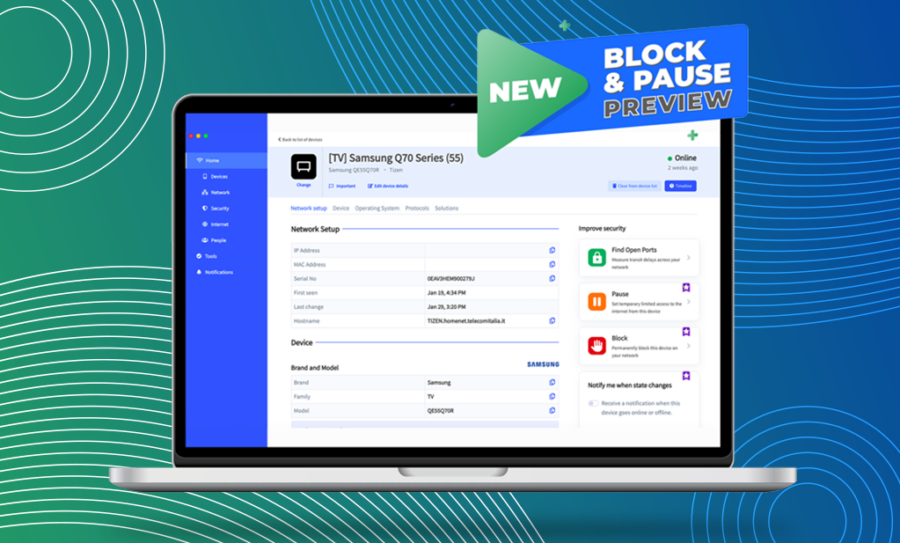
“How do I block intruders with Fing” or “How can I manage who has access to my WiFi” are only some of the many questions we have received over the years about network protection. And guess what? We listened! Today, we are excited to announce the release of two new features, the Block Network Access and the Limit Internet Time. Now available on Preview on Fing Desktop, this new set...

How to Use Fing Tools to Troubleshoot your Wi-Fi
When it comes to Fing features, we know that the most beloved one is our powerful network scanner, which allows you to see all the devices connected to your Wi-Fi with plenty of details. But did you know that you can do so much more with Fing? We give you all the tools to become a real home officer and to be in control of all the aspects of your...

How to Link Fing App and Fing Desktop and Why You Should Do it
So, we all think you are a happy Fing App user. You can check your network status, see all the devices connected to your Wi-Fi, scan for intruders, run security tests and monitor your Internet Service Provider performances. You have your network secured, and all of this with your mobile app. To do all this, your mobile must be connected to your home Wi-Fi… and obviously, you may not be...
How to Schedule Automated Router Vulnerability Tests
Have you ever worried about your router vulnerability? Our routers are the gateway to the Internet, allowing home networks to connect with the whole world. But they could also lead intruders or malicious strangers inside your Wi-Fi… and once the breach has been open, nothing will stop them from reaching all your connected devices (and eventually your data). Are you feeling scared already? Don’t worry! With the latest releases of Fing...