Latest from our blog

Delivering More Insights for Your Network
At Fing, we’re always striving to make network management simple and insightful. By continuously refining our tools and introducing new features, we aim to empower users with a deeper understanding of their networks and actionable insights that make a real difference. In the coming days, we’re thrilled to roll out two exciting new features designed to give you deeper insights into your network: Enhanced Network Insights on Fing Desktop: a...

9 Ways Fing Agent Can Help Your Small Business
For small businesses and SOHOs, time is money, and every minute your network underperforms, your business loses out. Picture this: missing a critical deadline because of a sluggish internet connection or losing a valuable client after failing to deliver due to network outages. On top of connectivity issues, how much do you really know about the devices connected to your network? Unauthorized devices could be hogging bandwidth, or worse, posing...

How Fing Agent Can Elevate Your IT Consultancy
As an IT consultant, whether you’re working freelance or as part of a Managed Service Provider (MSP), you know that managing client networks requires more than just being reactive. Small businesses depend on their networks for day-to-day operations, and when something goes wrong, they expect swift, expert solutions. However, frequent on-site visits, endless troubleshooting phone calls, and investigating each network issue manually can drain your time, energy, and resources. In...
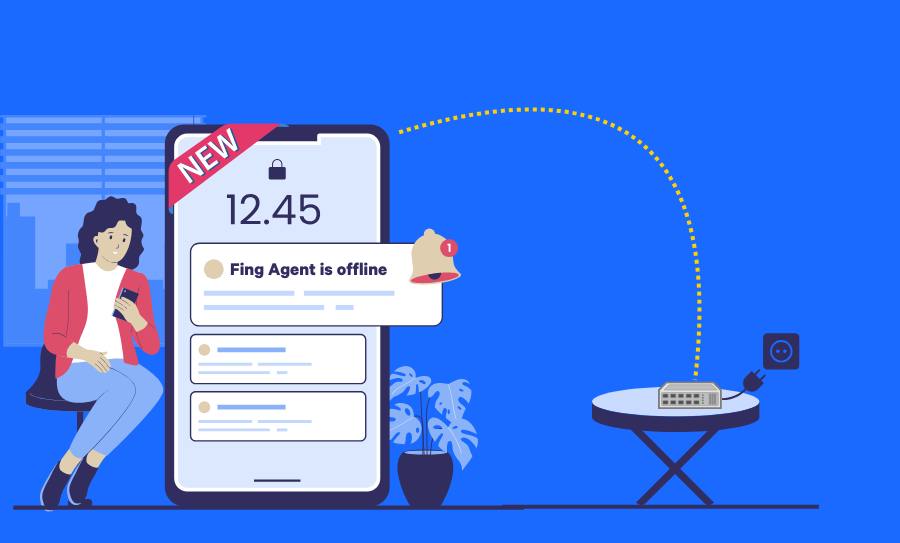
Introducing Fing Agent for Raspberry Pi
Years of countless requests have led us to this exciting moment! Our passionate community has been asking for an always-on network monitoring solution that caters to both remote management and tech-savvy enthusiasts. We’ve listened, and we’re thrilled to deliver! Introducing Fing Agent, a network monitoring unit designed for Raspberry Pi. This cutting-edge solution provides continuous monitoring and comprehensive network management, ensuring peak performance around the clock. Ready to dive in?...

How to forget a network on Mac in 7 steps
Is your Mac automatically connecting to a Wi-Fi network you no longer want to use? Do you need to forget a hotel Wi-Fi or a network with a changed password? Whatever the reason, learning how to forget a network on Mac ensures you have full control over your Wi-Fi connections. In this guide, we’ll walk you through the exact steps to remove a Wi-Fi network from your Mac, along with...
Welcome to Fing Desktop: Your Network Management Starter Pack
Fing Desktop is a powerful network scanner tool to monitor your Wi-Fi and gain a deeper understanding of your connected devices. If you’re new to using it and don’t know how to unlock its full potential, then look no further! In this guide, we’ll navigate you through the essential steps for harnessing the power of Fing Desktop as a top-notch network scanner. From seamless installation to delving into its key...
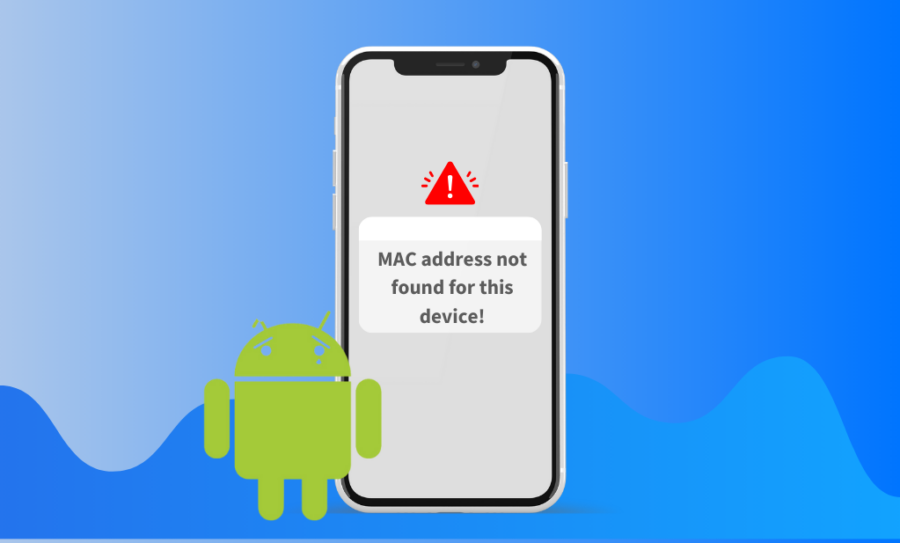
How Google’s Recent Changes Affect Fing App
Google’s recent changes to the Android operating system have impacted the functionality of many networking apps, including Fing. In particular, access to sensitive information such as MAC addresses is now prevented. While these changes are intended to improve privacy and security on all Android devices, this approach may impact device recognition within network tools like Fing. And to continue providing a great experience for users, we must comply with the latest...
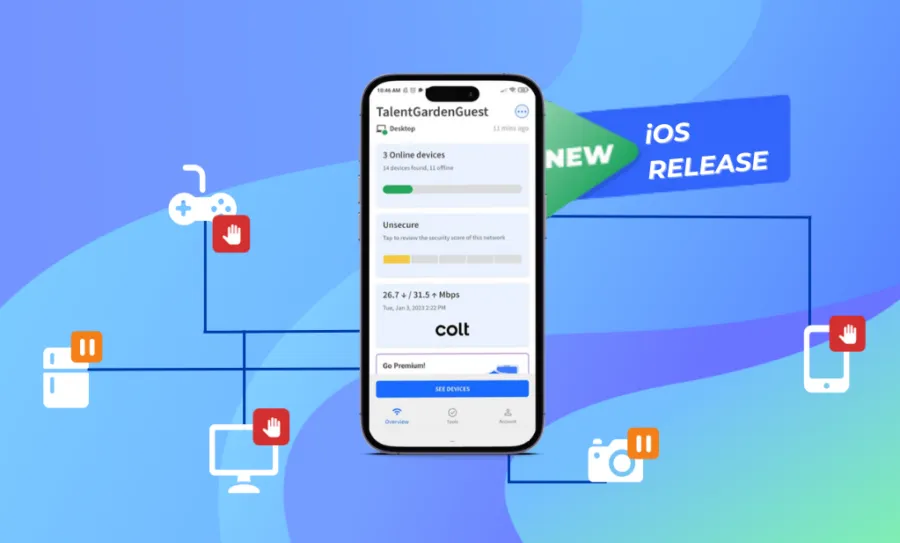
How to Gain Full Control of Your Network with the Fing iOS App
Ready to get more control over your network and devices? Fing’s newest update for iOS brings new Premium features that let you take charge of your home network’s Internet access control, directly from your iPhone! You can now block network access and autoblock new devices, set time limits on internet access, and schedule internet downtime even from your iOS devices. That’s powerful stuff! Keep reading to learn more about these...
Fing Insights #5: A Dive Into the Laptop World
The development of the personal computer is one of the most significant technological achievements in the past century. Considering that early computers required entire rooms to fit the equipment needed. The growth and commercialization of standard computers is simply astonishing. In this latest entry of Fing Insights, we take a closer peek into the computer’s smaller form-factor friend, the laptop. The Fing Team constantly works to expand our knowledge of...