Your network data is only as useful as the places you can use it. Today, we’re making what Fing sees on your networks easier to put to work: in your own scripts and dashboards, and in the AI assistants you already talk to.
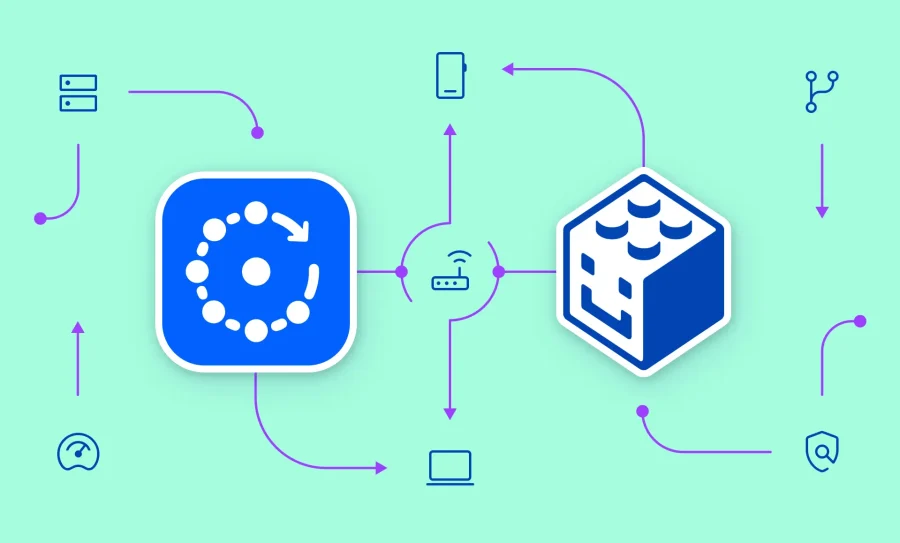
Two new features make this possible, both available now to Fing Professional subscribers. The Fing Cloud API lets your own tools read what Fing knows about your networks, from devices and events to speed tests and router vulnerability scans. Fing MCP lets AI assistants like Claude, ChatGPT, Codex and Cursor read that same data, so you can simply ask questions about your network and get answers. Both are read-only for now, which means they can look at your networks but can’t change them.
We’re also making it easier to roll out Fing Agents: you can now activate them remotely, with a short code or link, without scanning the network from the Fing mobile app. And if you’d rather keep things on your own network, our free Local API is there too.
Let’s take a closer look.
Fing Cloud API: your network data, in your own tools
With the Fing Cloud API, your own scripts, dashboards and automations can read what Fing knows about your networks: workspaces, networks, devices, contacts, events, speed test results and router vulnerability scans. You create credentials in your account, and any tool that can call a REST API can start pulling data.
A few ideas to get you going:
- A home or office dashboard showing which devices are online and when the last speed test ran
- A script that exports the device inventory of every network you manage
- An alerting tool that reads the event log and flags new devices or outages
The Cloud API is available now to Fing Professional subscribers, as a beta. It is read-only for now, and endpoints and limits may change as we build on it.
Prefer to stay local? There’s a Local API too
Not every project needs the cloud. If you want to keep things on your own network, the Fing Local API is a free, locally published HTTP API that runs alongside Fing Desktop, Fing Agent and Fingbox. Use it to list the devices on your network with their current status, and, with Fing Desktop, to check which contacts are online or offline. Everything stays local, with no external services involved.
It’s built for plugging real-time device presence and network status into your own custom workflows. You find or generate your API key in the Fing Desktop settings, and you’re ready to make your first call.
Fing MCP: ask your AI assistant about your network
If you’d rather ask a question than write a script, there’s Fing MCP.
The Model Context Protocol (MCP) is the open standard AI assistants use to connect to external tools. With the Fing MCP server, an assistant such as Claude, ChatGPT, Codex or Cursor can read your Fing data directly. Ask it which devices joined your network this week, what the latest speed test showed, or whether your router has known vulnerabilities, and it can look up the answer in your account.
Signing in is done through a secure Fing sign-in page, so your assistant never sees your password. You stay in control: every connected app appears in your account, where you can reduce its access or revoke it at any time. In this beta, every tool is read-only, so an assistant can look at your networks but can’t change them, block devices, or run scans.
Fing MCP is available now to Fing Professional subscribers, as a beta.
Connect your AI assistant to Fing
Also new: activate Fing Agents remotely
Until now, activating a Fing Agent meant scanning the network with the Fing mobile app, which meant being on the same network as the device. That’s fine at home. It’s less fine when the agent is in a customer’s office, a second location, or a headless box with no screen or keyboard.
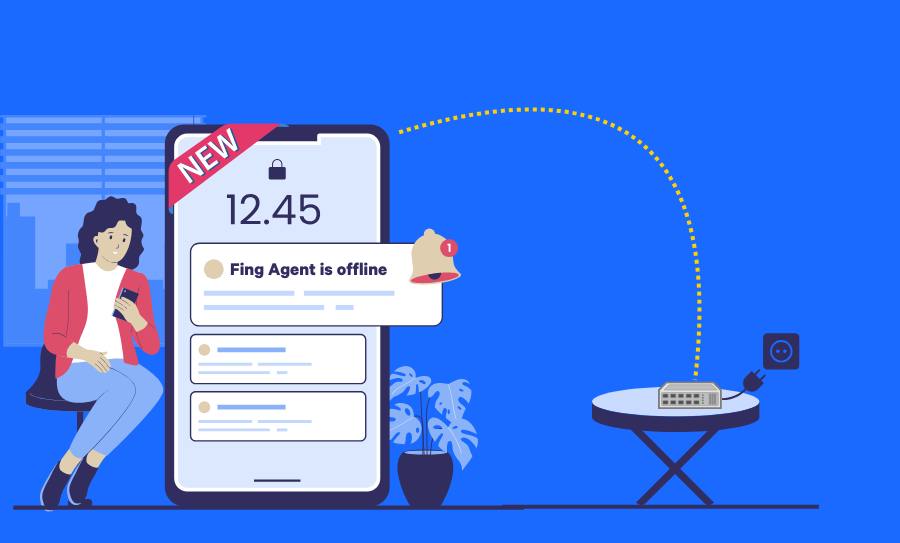
Now you can activate an agent remotely. The agent shows a short activation code on its local status page, you enter it at setup.fing.com while signed in to your Fing account, and you confirm.
Say you’re shipping a pre-loaded Raspberry Pi to a customer site. Someone on-site plugs it in and sends you the code. You activate it from your own account, in your own workspace.
Remote activation works for Fing Agents installed as a snap, in Docker or on a Raspberry Pi, and is available to all paying users who want to activate additional Fing Agents remotely.
Activate Fing Agent with a code or link
Get started
With these new features, you can access the network data that matters to you the way you like best, from your own scripts to your favorite AI assistant, and set up always-on monitoring at your most important sites from wherever you are.
Still on a free plan? Explore the Fing subscription plans and start taking the reins of your networks.