Your home Wi-Fi is working right now: routing messages, streaming video, handling your work calls, connecting your smart doorbell. Everything feels fine. But “feels fine” and “is secure” are not the same thing, and the gap between them is exactly where most home network problems begin.
The hard truth is that most people only think about Wi-Fi security after something goes wrong: after they notice an unfamiliar device, after speeds mysteriously drop, after a neighbour admits they’ve been piggybacking on the connection for months. By then, the damage may already be done.
This guide is for the moment before that. Whether you’ve never thought about this before or you’ve been meaning to sort it out for a while, this is your starting point for how to secure home Wi-Fi, covering what actually matters, in the right order.
Why home Wi-Fi security matters more than ever
A few years ago, the average home had three or four devices on its Wi-Fi. Today that number is closer to fifteen, and growing. Laptops, phones, tablets, smart TVs, thermostats, security cameras, baby monitors, robot vacuums, voice assistants. Each one is a connection point. Each one is a potential entry point.
At the same time, remote work has made the home network a professional asset. A compromised home Wi-Fi isn’t just an inconvenience anymore: it can mean exposure of work files, client data, or corporate credentials.
The threats for a home network are real and surprisingly mundane:
- Unauthorised access: neighbours, former tenants, or strangers within range connecting to your network without your knowledge
- Data interception: on unsecured or poorly configured networks, traffic can be monitored by someone on the same connection
- Device hijacking: smart home devices with weak security can be taken over and used as a foothold into the rest of your network
- Bandwidth theft: less dramatic but frustrating, and a sign your network has been accessed without permission
None of this requires a sophisticated attacker. Many home network breaches happen through default credentials that were never changed, or outdated router firmware with known vulnerabilities that anyone can look up.
Signs your Wi-Fi may already be compromised
Before you start securing anything, it’s worth asking: how would you even know if something was already wrong?
Most people wouldn’t. That’s the uncomfortable reality. Unlike a break-in, a compromised Wi-Fi leaves no broken window. But there are signs to watch for:
- Unexplained slowdowns. If your connection has become sluggish at odd hours (particularly late at night or during times you’re not actively using it) it may indicate someone else is consuming bandwidth.
- Devices you don’t recognise. If you log into your router and see a connected device you can’t account for, that’s a red flag. Most people never check. The ones who do are often surprised.
- Your router settings have changed. DNS settings, firewall rules, or port forwarding configurations that you didn’t touch are a serious warning sign.
- You’ve been locked out of an account. While not always network-related, credential theft through an insecure connection can lead to account takeovers.
- Your router is warm and active when no one’s home. Physical signs count too. If your router is processing a lot of traffic when the house is empty, something is worth investigating.
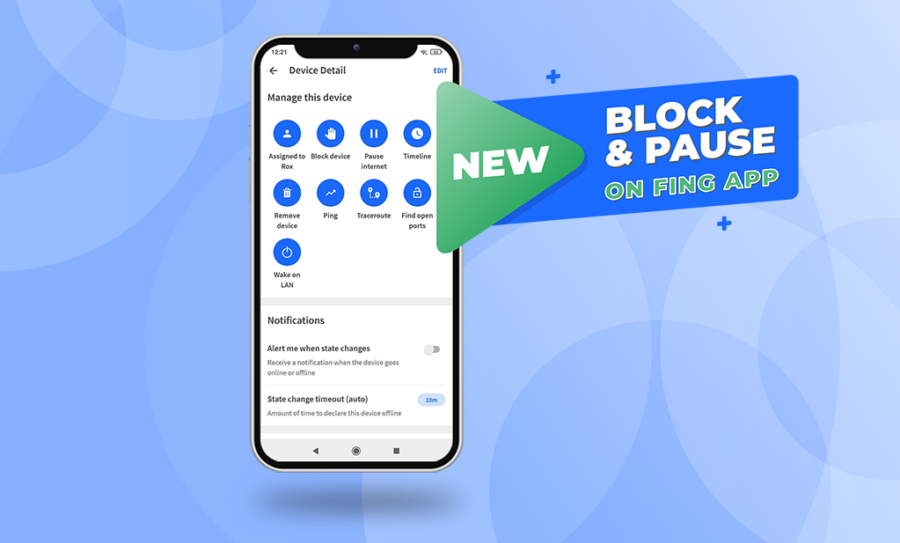
This is exactly the kind of visibility that Fing is built for. Running a quick scan with Fing Desktop shows you every device currently connected to your network, with names, manufacturers, and IP addresses. If something is on your network that shouldn’t be, Fing will surface it. It takes about two minutes and works on any home setup.
The three layers of home Wi-Fi security
Thinking about Wi-Fi security as a single problem makes it harder to solve. It helps to break it into three distinct layers, each with its own risks and fixes.
Layer 1: your router (the gate)
Your router is the entry point to everything. It’s the device that decides who gets in and who doesn’t, and in most homes, it’s running on factory settings that were never designed to be kept long-term.
Securing your router means: changing default login credentials, keeping firmware updated, using strong encryption (WPA3 where possible, WPA2 as a minimum), and disabling features like WPS or remote management that most users don’t need and attackers know how to exploit. Fing’s network security tools can help you identify weaknesses in your router’s configuration before someone else does.
Layer 2: your network (who’s inside)
Even with a well-configured router, the question of who and what is connected matters enormously. Knowing how to secure home Wi-Fi at the network level means more than locking the front door: it means knowing who’s already inside. A guest who connected three years ago. A smart device from a brand that stopped issuing security updates. An old phone that still sits in a drawer but is still live on the network.
Securing your network means knowing what’s on it, separating sensitive and low-trust devices (guest networks and IoT segments are your friends here), and monitoring for new or unexpected connections over time.
Layer 3: your devices (what they’re doing)
The devices on your network are only as secure as their own configurations. Outdated software, weak passwords, and unpatched vulnerabilities on individual devices can undermine even a perfectly secured router.
Securing your devices means keeping them updated, enabling device-level firewalls, and applying the same password hygiene to your devices that you apply to your router.
Where to start, based on how much time you have
Wi-Fi security doesn’t have to be an all-day project. Here’s how to prioritise based on what you can realistically commit to right now.
If you have 5 minutes
Scan your network. Download Fing Desktop and run a scan. This single step gives you a complete picture of what’s connected to your Wi-Fi right now. If you spot something unfamiliar, you have something concrete to act on. If everything checks out, you have peace of mind.
If you have 30 minutes
Change your router’s default credentials. Open a browser, go to your router’s admin panel (usually 192.168.1.1 or 192.168.0.1), and replace the default username and password with something strong and unique. This one change closes the most commonly exploited vulnerability in home networks.
While you’re there, check your Wi-Fi password. If it’s the one printed on a sticker on the router, change it. Those default passwords are often weak and widely shared.
If you have an afternoon
You’re ready for the full treatment. Our guide Home Network Cybersecurity for Beginners: 10 Tips to Increase Your Wi-Fi Security in 2026 walks through every key step, from setting up a guest network to enabling two-factor authentication, with clear, jargon-free instructions. Work through it at your own pace and you’ll come out the other side with a genuinely well-protected network.
How to keep your Wi-Fi secure over time
The biggest mistake people make with Wi-Fi security is treating it as a one-time task. Secure it once, forget about it. But your network changes: new devices join, firmware needs updating, household members come and go. A network that was secure six months ago may not be today.
A few habits make all the difference:
- Monitor your network continuously. Rather than relying on manual checks, Fing Desktop and Fing Agent give you always-on network monitoring, watching your network around the clock and alerting you the moment something unexpected joins. You don’t have to remember to check. You’ll know as soon as anything changes.
- Review connected devices when something changes. Someone moves in or out, you buy a new smart device, a contractor works at your home and asks for the Wi-Fi password: these are all moments to do a quick audit of what’s on your network.
- Keep your router firmware updated. Set a reminder every two to three months if your router doesn’t update automatically. Manufacturers regularly release patches for security vulnerabilities. A router running two-year-old firmware is a known risk.
- Rotate your Wi-Fi password occasionally. If you’ve shared your password widely – with guests, repair workers, a previous tenant – changing it periodically is a simple way to limit who still has access.
- Replace old devices. Smart home devices that no longer receive security updates become permanent vulnerabilities on your network. It’s worth knowing which of your devices are still supported — and thinking about what to do with the ones that aren’t.
Start with visibility
The single most important thing you can do right now to secure your home Wi-Fi is to understand what’s already on it. Most people searching for how to secure home Wi-Fi expect a long checklist, but visibility comes first. You can’t protect what you can’t see.
Fing gives you that visibility in minutes, free with Fing Desktop, with no technical setup required. Scan your network, identify every connected device, and set up alerts so you know the moment something new joins. From there, every other step becomes clearer.
Once you know what you’re working with, our 10-step guide to home network cybersecurity will walk you through everything else.