Whether you’re troubleshooting a slow home connection or managing dozens of devices across a business network, a good network scanner app gives you instant visibility into everything that’s connected — and everything that shouldn’t be.
Network scanning tools work by probing your LAN to discover devices, identify open ports, and flag potential security risks. Some are simple ip scanner apps built for quick one-off checks; others are full-featured wifi scanning apps that offer real-time monitoring, device identification, and access control. The right choice depends on what you need.
In this guide, we compare the 7 best network scanner apps for 2026 — from free, open-source options to comprehensive platforms — so you can find the tool that fits your network, your skill level, and your budget.
How We Evaluated These Network Scanning Tools
To put together this comparison, we evaluated each network scanner tool across five key criteria: platform support (mobile, desktop, and server), ease of use (installation and learning curve), scanning features (device identification, port scanning, vulnerability detection), ongoing monitoring capabilities, and price. We prioritized tools that are actively maintained in 2026 and widely used by both home users and IT professionals.
Quick Comparison Table
| App | Platforms | Price | Best For | Device ID | Port Scanning | Blocking | Open Source |
|---|---|---|---|---|---|---|---|
| Fing | iOS, Android, Windows, macOS, Raspberry Pi, Docker, NAS | Free / Paid plans | All-round home & professional use | ✅ Advanced (brand + model) |
✅ | ✅ | ❌ |
| Angry IP Scanner | Windows, macOS, Linux | Free | Quick on-demand IP scans | ❌ Basic (hostname only) |
✅ | ❌ | ✅ |
| Nmap | Windows, macOS, Linux | Free | Security auditing & penetration testing | ✅ (OS fingerprinting) |
✅ Advanced | ❌ | ✅ |
| Advanced IP Scanner | Windows only | Free | Windows LAN administration | ❌ Basic | ✅ | ❌ | ❌ |
| Wireshark | Windows, macOS, Linux | Free | Deep packet inspection & protocol analysis | ❌ (not a device scanner) |
❌ (packet-level) |
❌ | ✅ |
| SoftPerfect Network Scanner | Windows, macOS, Linux | Free trial / Paid plans | IT admins managing mid-size networks | ✅ (MAC + hostname) |
✅ | ❌ | ❌ |
| NetSpot | Windows, macOS, Android | Free / Paid plans | WiFi visualization, heat mapping & network planning | ❌ (WiFi-focused, not device-level) |
❌ | ❌ | ❌ |
The Best Network Scanner Apps for 2026
With all this in mind, let’s dive into the best network scanner apps for 2026. Here’s a list of the top 7 best network scanner apps:
1. Fing
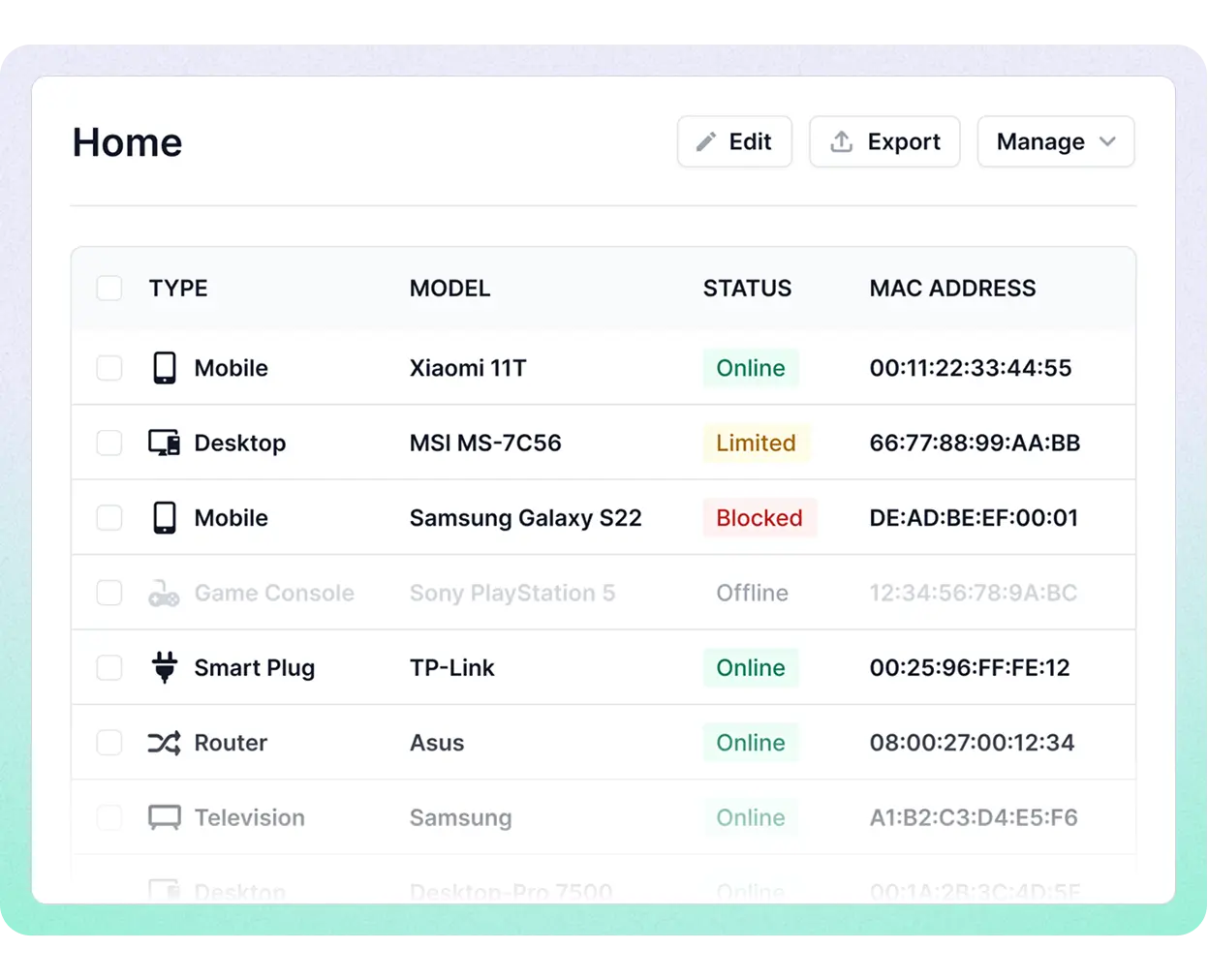
Ok, we might be a little biased, but this is a fact: Fing is widely regarded as one of the best network scanner apps available. Its intuitive interface makes it easy for users of all levels to discover devices on their network, analyze network performance, and detect intruders. Fing’s device catalog includes thousands of brands and models and is constantly updated with the most recent devices on the market, making it a reliable tool for building an accurate network inventory.
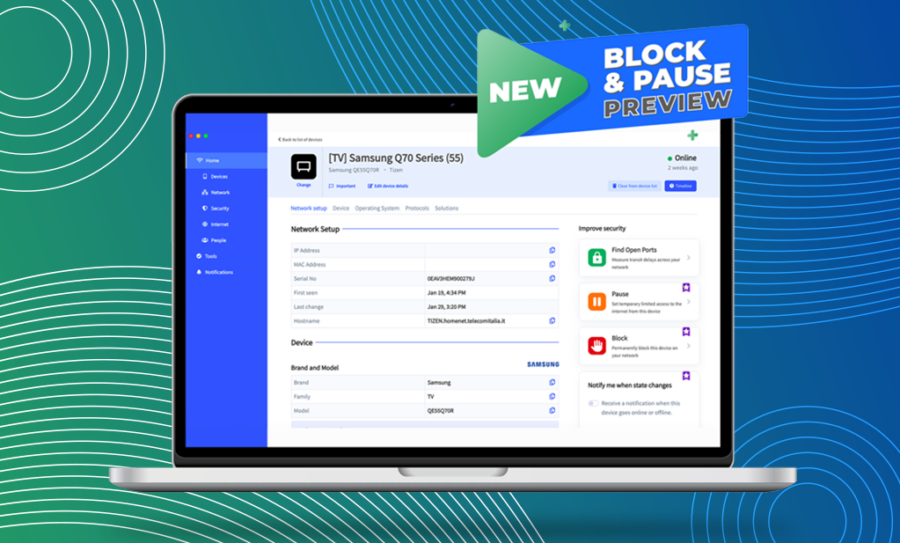
Beyond basic scanning, Fing offers advanced features like Wi-Fi troubleshooting, ISP analysis, and detailed device information — including device type, brand, model, and operating system. Unlike most network scanning tools on this list, Fing also allows users to block or limit internet access on selected devices, making it a powerful tool for managing network security. It also includes user presence tracking, enabling you to monitor who is on your network and when, adding an extra layer of control and visibility.
Fing is available as a wifi scanning app for both iOS and Android, as well as a full-featured desktop application for Windows and macOS — making it the most versatile network ip scanner app on this list. And with the Fing Agent, a lightweight network monitoring solution for Raspberry Pi, Docker, and NAS, you can effortlessly monitor remote locations and maintain round-the-clock network control, ensuring consistent and reliable performance 24/7.
Whether you’re a home user trying to figure out who’s on your Wi-Fi, an IT consultant managing multiple client networks, or a small business owner who needs reliable network visibility — Fing is a comprehensive solution that scales to your needs.
Best for: All-round network scanning and management — from home users to IT professionals.
Pricing: Free with optional plans for advanced features (blocking, alerts, ongoing monitoring).
Platforms: iOS, Android, Windows, macOS, Raspberry Pi, Docker, NAS
2. Angry IP Scanner
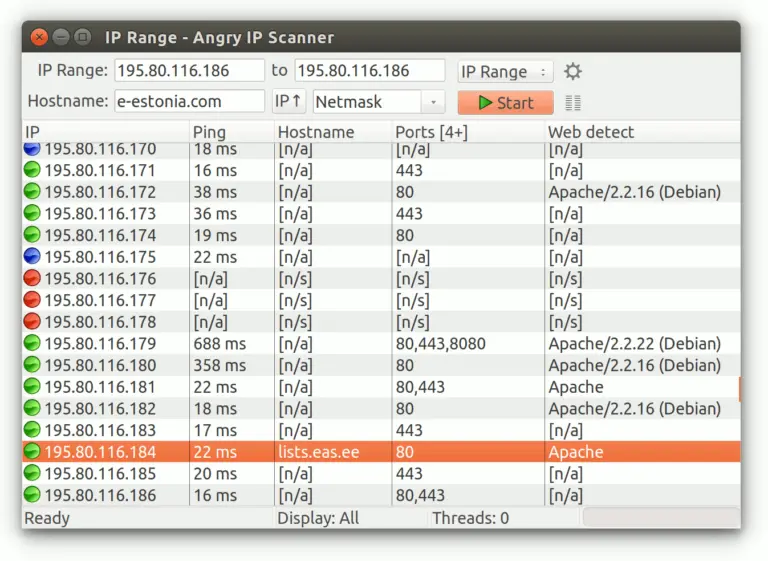
Angry IP Scanner is one of the most popular free, open-source IP scanner apps available, and for good reason: it’s fast, lightweight, and cross-platform. It works by sending a ping to each IP address in a specified range and then checks for responsive hosts, open ports, and basic hostname information.
One of its biggest strengths is simplicity. There’s no account required — just download and run. It supports scanning local networks as well as internet-facing IP ranges, and results can be exported to CSV, TXT, XML, or IP-Port list formats, making it easy to share findings with your team.
Where Angry IP Scanner falls short is in depth. Compared to Fing, it doesn’t identify device types, brands, or models — you’ll see IP addresses and hostnames, but not much else. There are no security alerts, no ongoing monitoring, and no device blocking features. It’s also not well suited for large-scale enterprise networks.
Best for: Users who need a fast, no-frills IP scanner for occasional on-demand scans — think quick LAN audits or checking which IPs are active on a subnet.
Pricing: Completely free and open source.
Platforms: Windows, macOS, Linux.
3. Nmap (Network Mapper)
Nmap is arguably the most powerful and widely respected network scanning tool in existence. Developed since 1997 and actively maintained, it’s the go-to choice for cybersecurity professionals, penetration testers, and network administrators worldwide.
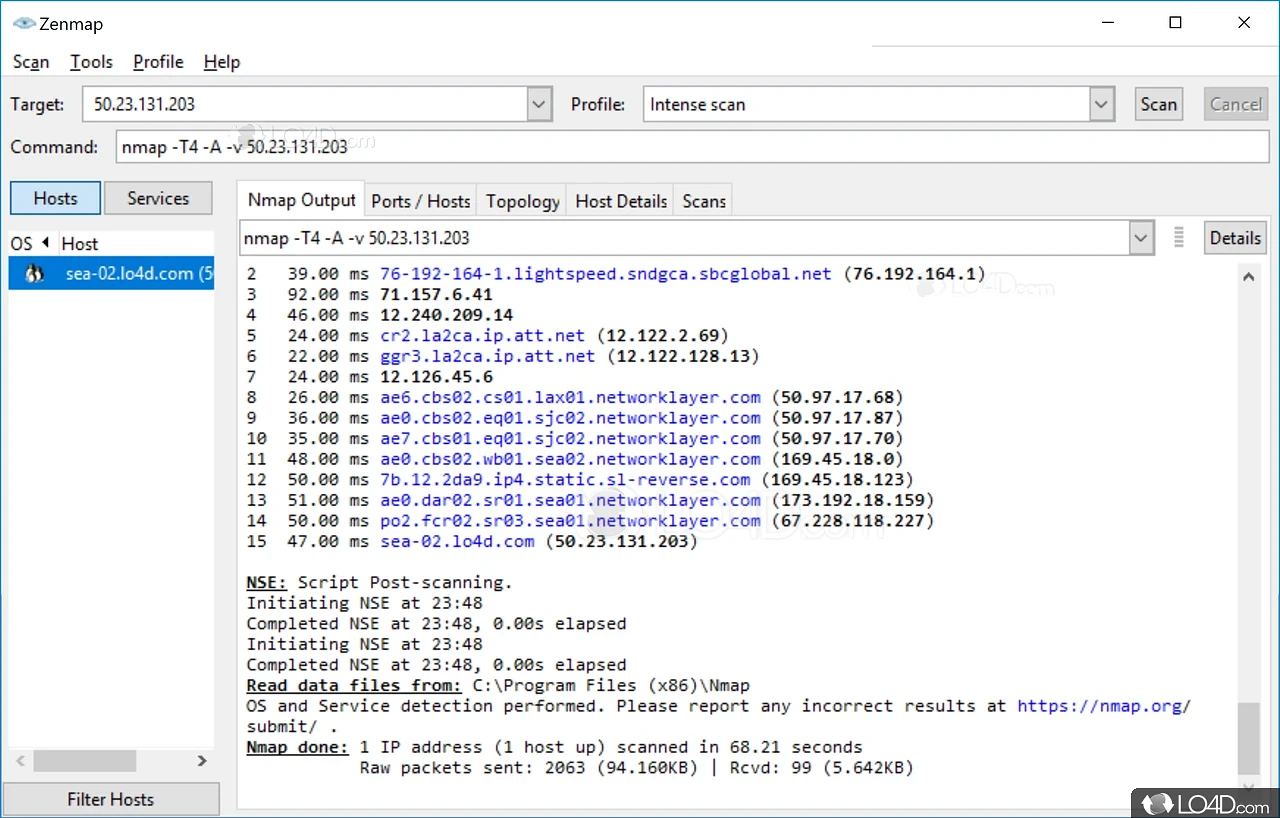
What sets Nmap apart is its depth. Beyond basic host discovery and port scanning, it offers OS fingerprinting — the ability to detect what operating system a remote device is running based on how it responds to network packets. It also includes the Nmap Scripting Engine (NSE), which allows users to automate tasks like vulnerability detection, service enumeration, and brute-force testing.
The trade-off is complexity. Nmap is primarily a command-line tool, and while a GUI version called Zenmap exists to make it more accessible, the learning curve remains steep for beginners. You’ll need to understand networking concepts and command syntax to get the most out of it. It’s also worth noting that Nmap is purely a scanning and auditing tool — it doesn’t offer real-time monitoring, device blocking, or the kind of ongoing network visibility that consumer-facing tools provide.
Best for: Security professionals and IT administrators who need deep network auditing, vulnerability assessment, and advanced port analysis.
Pricing: Completely free and open source.
Platforms: Windows, macOS, Linux
4. Advanced IP Scanner
Advanced IP Scanner is a free network IP scanner app designed specifically for Windows environments. Developed by Famatech, it offers a clean, intuitive interface that makes it easy to scan your entire LAN in seconds and see all connected devices.
Its standout feature is tight integration with Windows network administration. You can access shared folders directly from the scan results, wake computers remotely via Wake-on-LAN, and initiate RDP (Remote Desktop) or Radmin sessions with a single click. This makes it particularly popular among Windows system administrators who manage office networks.
When compared with Fing, the main limitations are platform and depth. Advanced IP Scanner is Windows-only — there’s no macOS, Linux, or mobile version. Its device identification is limited to basic information (IP, MAC address, hostname), and it lacks advanced features like security alerts, device type recognition, internet speed testing, or continuous monitoring.
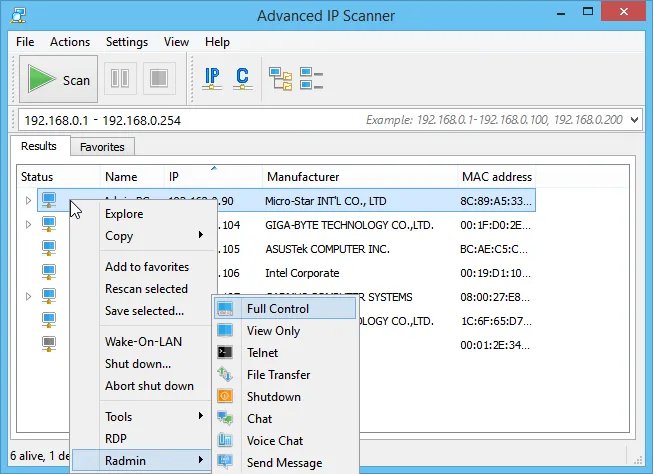
Best for: Windows administrators who need a quick, free LAN scanner with built-in remote access capabilities.
Pricing: Completely free.
Platforms: Windows
5. Wireshark
Wireshark is the world’s leading open-source network protocol analyzer. It’s important to understand that Wireshark is not a traditional network scanner — it doesn’t discover devices or scan IP ranges like the other tools on this list. Instead, it captures live network traffic and lets you inspect individual packets in extraordinary detail. This makes Wireshark an incredibly powerful tool for troubleshooting network issues, analyzing protocol behavior, and investigating security incidents. Its filtering engine is one of the most sophisticated available, allowing you to drill down into specific conversations, protocols, or even individual bytes of data.
However, Wireshark’s power comes with significant complexity. Interpreting packet captures requires solid networking knowledge, and the sheer volume of data can be overwhelming for casual users. It’s also a passive tool — it observes traffic but doesn’t actively scan, block, or manage devices on your network.
We’ve included Wireshark on this list because it complements traditional network scanner apps. If you’ve identified a suspicious device using a tool like Fing and need to understand exactly what traffic it’s generating, Wireshark is the tool you’d reach for.
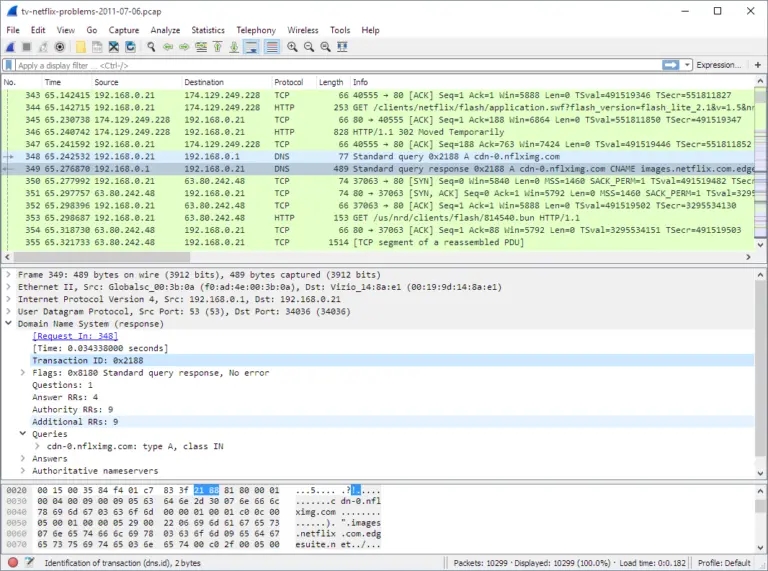
Best for: Network engineers and security analysts who need deep packet-level inspection for troubleshooting or forensic analysis.
Pricing: Completely free and open source.
Platforms: Windows, macOS, Linux
6. SoftPerfect Network Scanner
SoftPerfect Network Scanner is a fast, flexible, and feature-rich network scanner tool designed for IT professionals managing small-to-medium networks. It performs ping sweeps to discover live devices, detects hardware MAC addresses (even across routers), and scans for open TCP/UDP ports and shared resources.
What makes SoftPerfect stand out from simpler ip scanner apps is its depth of information. It can retrieve practically any information about network devices, including SNMP data, registry values on Windows machines, and service statuses. It fully supports both IPv4 and IPv6 discovery, which is increasingly important as networks transition to IPv6. The tool also offers practical admin features like remote shutdown, Wake-on-LAN, and the ability to send network messages. Scan results can be filtered, organized, and exported, making it a solid choice for documentation and asset management.
Unlike other tools on this list, SoftPerfect Network Scanner operates on a trial/paid licence model — the free version has limitations, and you’ll need to purchase a licence for full functionality. It also lacks mobile apps, real-time monitoring, and device blocking features.
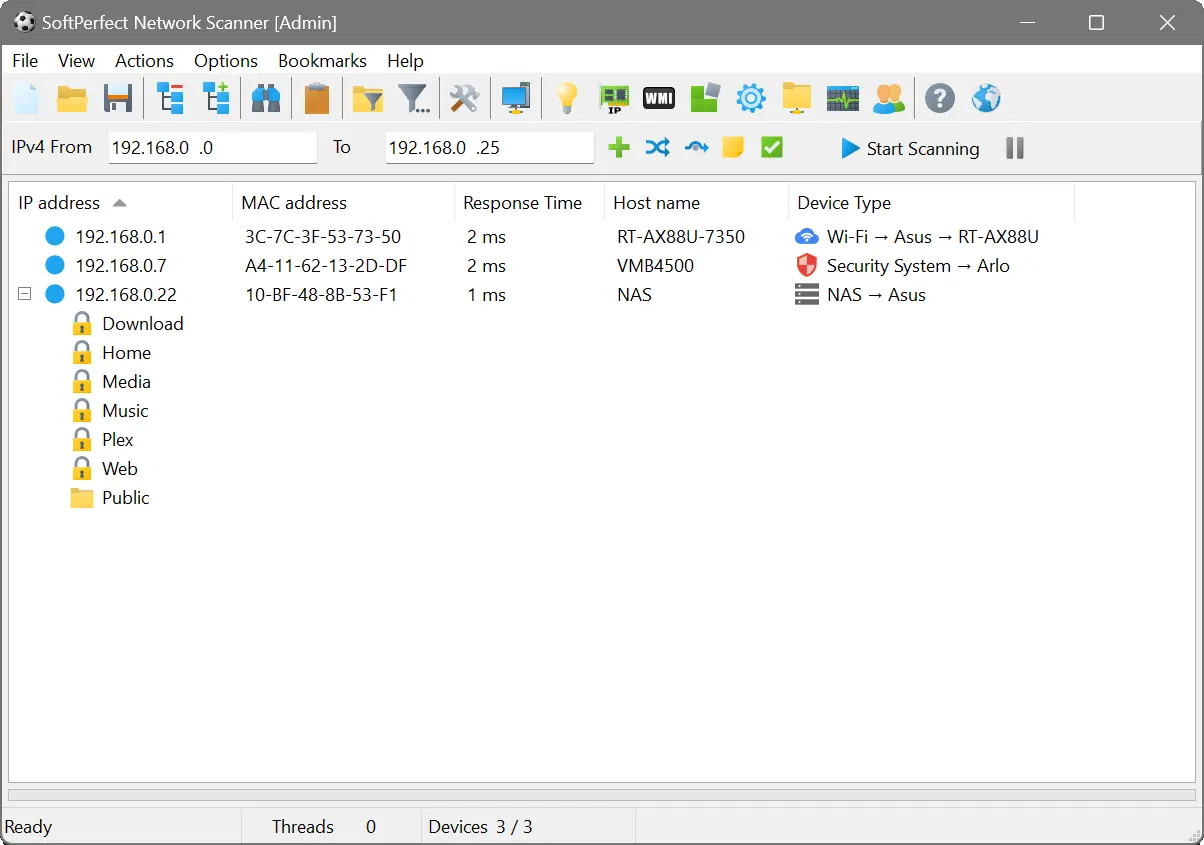
Best for: IT administrators who need a powerful desktop LAN scanner with advanced device interrogation features.
Pricing: Free trial with limited features; paid licence required for full use.
Platforms: Windows, macOS, Linux
7. NetSpot
NetSpot is a professional wifi scanning app and WiFi analyzer that takes a different approach from the other tools on this list. Rather than focusing purely on device discovery, NetSpot specializes in visualizing your wireless environment — its standout feature is the ability to create detailed WiFi heat maps that show signal strength, noise levels, and coverage gaps across your physical space.
This makes NetSpot uniquely valuable for planning and optimizing wireless networks. Its built-in Planning Mode lets you simulate wireless coverage, test different access point placements, and evaluate hardware options before making any physical changes — saving time and money on network deployments. The mobile version also includes network scanning, ping tools, and internet speed testing, making it a handy all-in-one wifi analyzer on the go.
NetSpot offers a free tier with basic WiFi analysis capabilities, but the more powerful features — including full heat mapping, multi-floor surveys, and predictive planning — require a paid Home, PRO, or Enterprise licence. It’s not designed for deep device identification or security auditing like Fing or Nmap, but if your primary goal is understanding and improving your WiFi coverage, NetSpot is one of the best tools available.
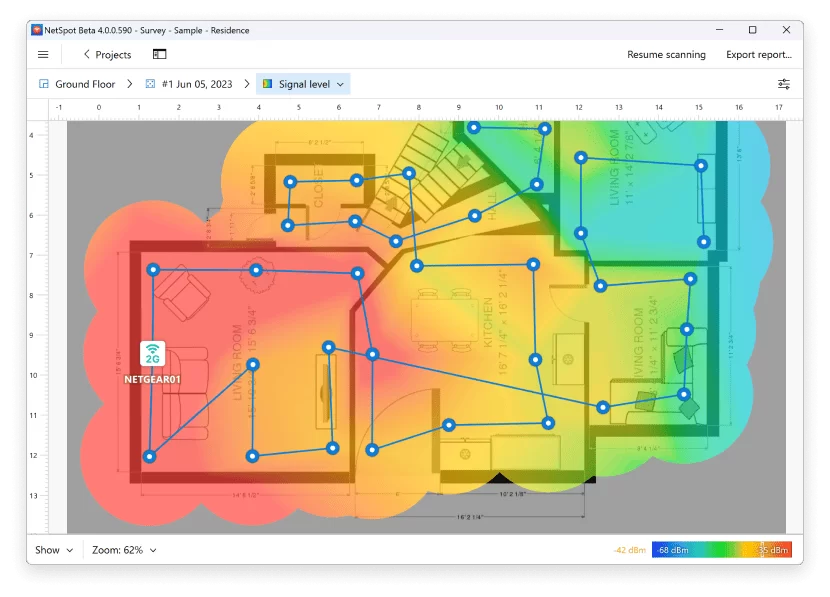
Best for: Home users and IT professionals who need to visualize, plan, and optimize WiFi coverage and access point placement.
Pricing: Free tier available; paid plans (Home, PRO, Enterprise) for advanced features.
Platforms: Windows, macOS, Android
How to Choose the Right Network Scanner App for Your Needs
With so many network scanning tools available, choosing the right one depends on your specific situation:
- Home users looking for an easy-to-use wifi scanning app that identifies every device on the network should start with Fing — it requires no technical knowledge and works on both mobile and desktop.
- IT consultants and MSPs managing multiple client networks need continuous monitoring, alerting, and remote visibility. Fing, with its Agent for Raspberry Pi and Docker, is purpose-built for this — it lets you monitor remote sites 24/7 without being on-site. Pair it with SoftPerfect Network Scanner for deeper SNMP interrogation when needed.
- Windows administrators managing an office LAN may prefer Advanced IP Scanner for its RDP integration and shared folder access, though Fing Desktop offers broader device identification and security features on the same platform.
- Security professionals conducting penetration tests or vulnerability assessments will find Nmap indispensable for its depth and scripting capabilities.
- Network engineers troubleshooting protocol-level issues should reach for Wireshark after using a traditional ip scanner application to narrow down the problem.
- Quick one-off scans — if you just need to check which IPs are active on a subnet, Angry IP Scanner gets the job done fast with zero setup.
Many professionals use a combination of these tools. For example, a common workflow is to use Fing for ongoing monitoring and device identification across all managed networks, Nmap for periodic security audits, and Wireshark for deep-dive troubleshooting when issues arise.
Why Network Scanner Apps Are Essential
Modern networks are constantly changing, with new devices, higher bandwidth demands, and evolving security threats. Without clear visibility, this complexity can lead to performance issues, security risks, and inefficiencies.
Network scanner apps provide real-time insight into connected devices and network activity, making it easier to spot unknown devices, detect exposed services, and troubleshoot problems early. As networks increasingly span local, remote, and cloud environments, these tools help maintain security and performance wherever devices are located.
To sum up, key benefits of using network scanner apps include:
- Enhanced Network Visibility: Gain a clear understanding of all devices on your network, including their IP and MAC addresses, open ports, and more.
- Improved Security: Detect unauthorized devices, potential vulnerabilities, and misconfigurations before they become bigger issues.
- Efficient Troubleshooting: Quickly identify and resolve network problems, reducing downtime and improving overall performance.
- Better Asset Management: Keep track of all connected devices, helping you manage resources effectively.
How Do Network Scanning Tools Work?
Network scanners operate by systematically probing and analyzing the devices connected to your network. These tools utilize various techniques to discover, identify, and map out your entire network infrastructure. Here are the three primary methods network scanning tools use:
- IP Address Discovery: This method works by scanning a range of IP addresses to determine which ones are in use. It’s like checking each house on a street to see if someone is home. The tool sends out small data packets (known as “pings”) to each IP address within a specified range. When a device responds, the scanner knows that an active device is present at that address.
- MAC Address Discovery: Every network device has a unique identifier called a MAC address (Media Access Control address), which is akin to a digital fingerprint. By scanning for these MAC addresses, network scanning tools can identify and distinguish between individual devices, even if they share the same IP address over time.
- Open Port Discovery: Ports are like virtual doorways on a device that allow data to enter and exit. Open port scanning involves checking which of these ports are accessible on a device. This technique not only reveals the services or applications running on the device but also highlights potential security risks
Get started today with the best network scanner app
If you’re looking for the best network scanner app in 2026, Fing is our top recommendation for both mobile and desktop. Its intuitive interface makes it easy for anyone to use, while its advanced features — including detailed device identification, security alerts, network blocking, and 24/7 monitoring — ensure that you’re always in control of your network.
Whether you’re managing a home network or a small business, Fing provides the tools you need to keep everything running smoothly and securely.