Internet Access Control
Decide who gets Internet, and when
Fing lets you control Wi-Fi access across your network — block devices, schedule downtime, and set parental controls — without installing anything. You decide who connects and when, whether it's bedtime for the kids or access management in an office.
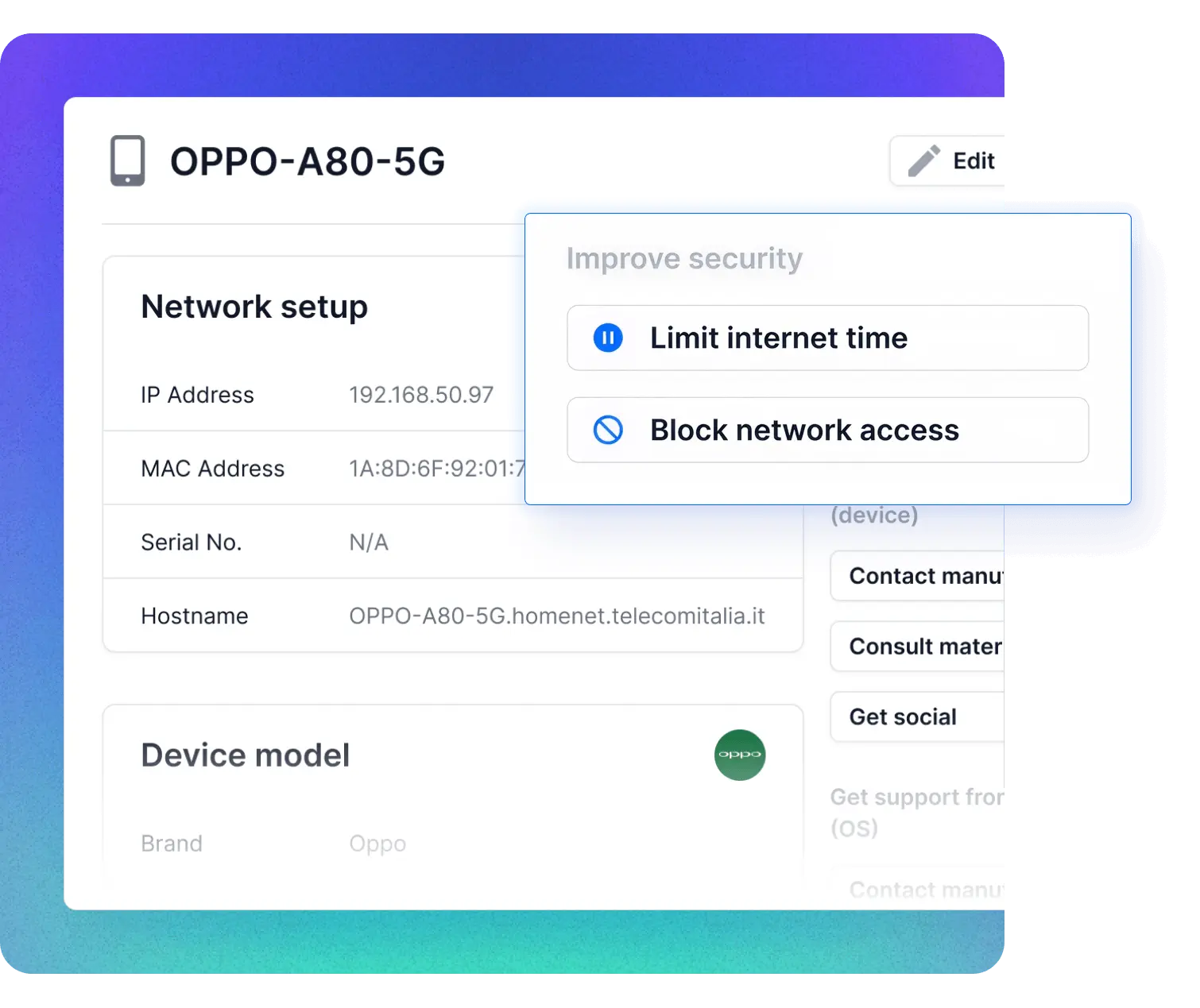
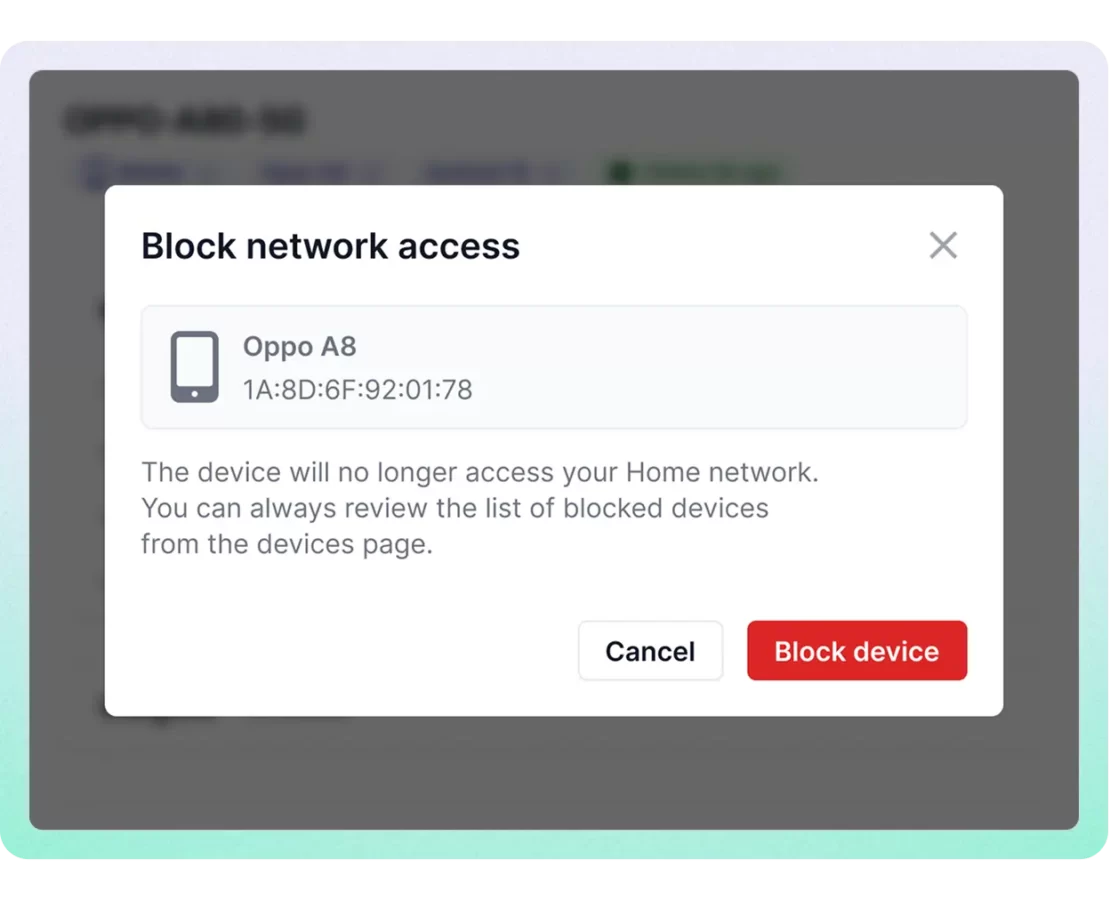
Block devices
Block unwanted devices from your Wi-Fi
Remove unauthorized or unwanted devices from your network with a single click — no router configuration needed. Fing blocks the device directly, preventing it from reconnecting even if it knows your Wi-Fi password. Enable Auto Block to automatically deny access to any unrecognized device the moment it connects.
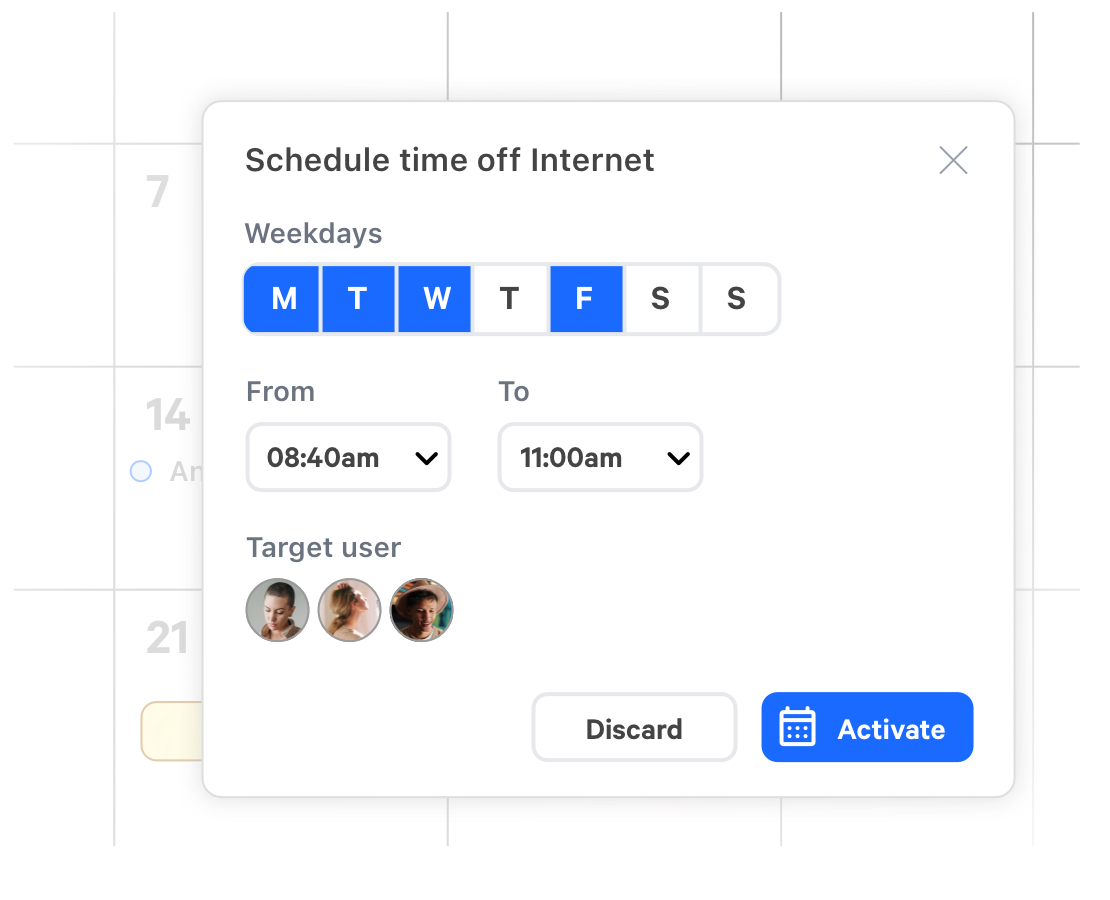
Schedule downtime
Set Internet schedules for any device
Define when specific devices can access the Internet — and when they can’t. Create recurring schedules for homework hours, bedtime, or focus time at work. Fing pauses Internet access automatically at the times you set, and restores it when the window ends. No apps required on the target device.
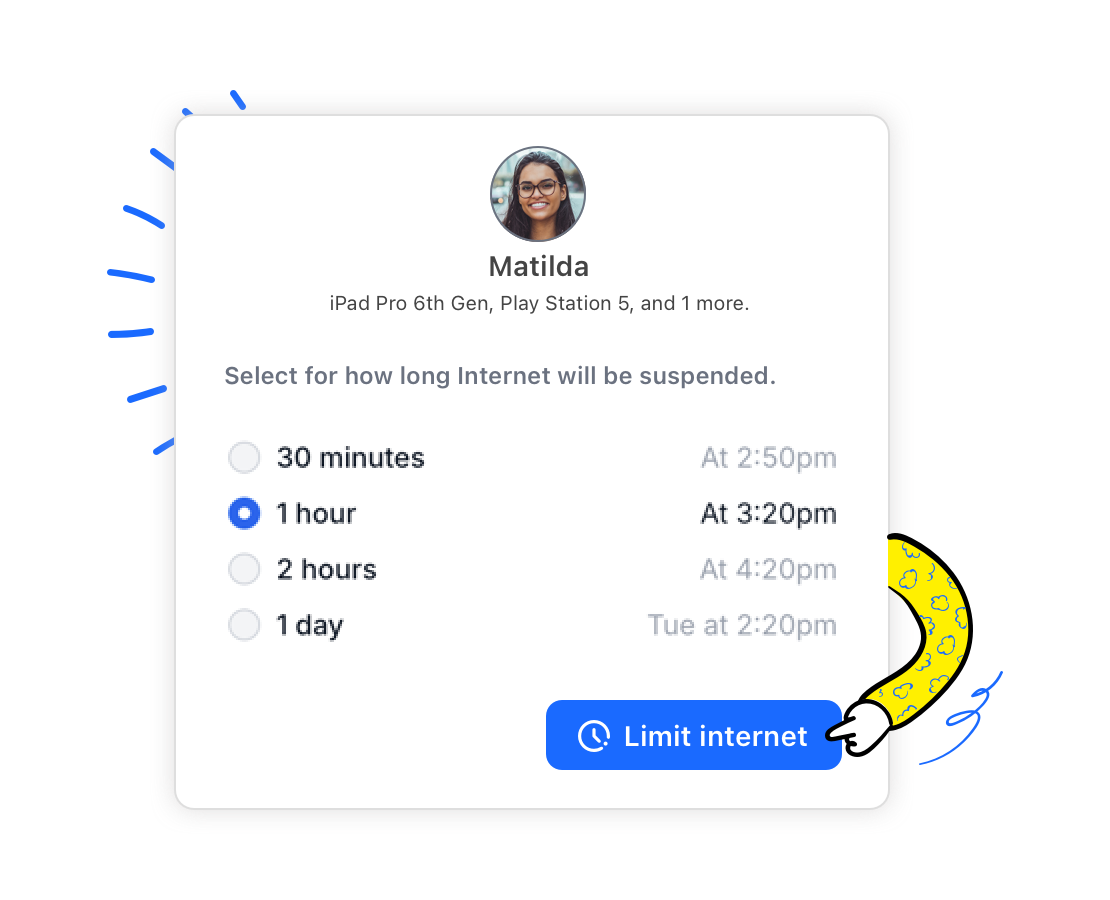
Digital wellbeing
Promote healthier screen habits on your network
App-based screen time tools only work on one device at a time — and kids can simply switch to another. Fing’s wifi controls work at the network level, covering every device a person uses: phones, tablets, gaming consoles, smart TVs. Assign devices to family profiles and manage parental controls for wifi from a single dashboard.
What you need to control Internet access
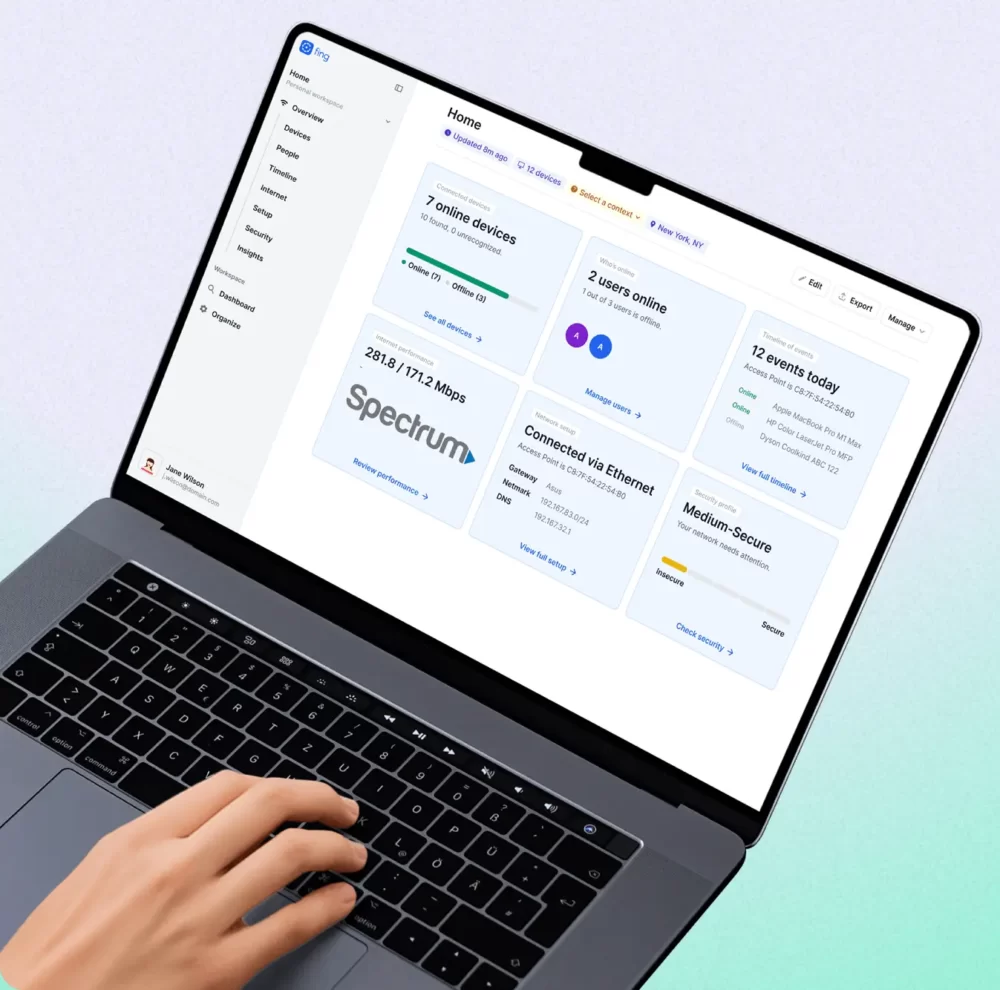
Fing Desktop
Block devices and schedule internet downtime directly from your Windows or Mac computer. Works while the app is running.
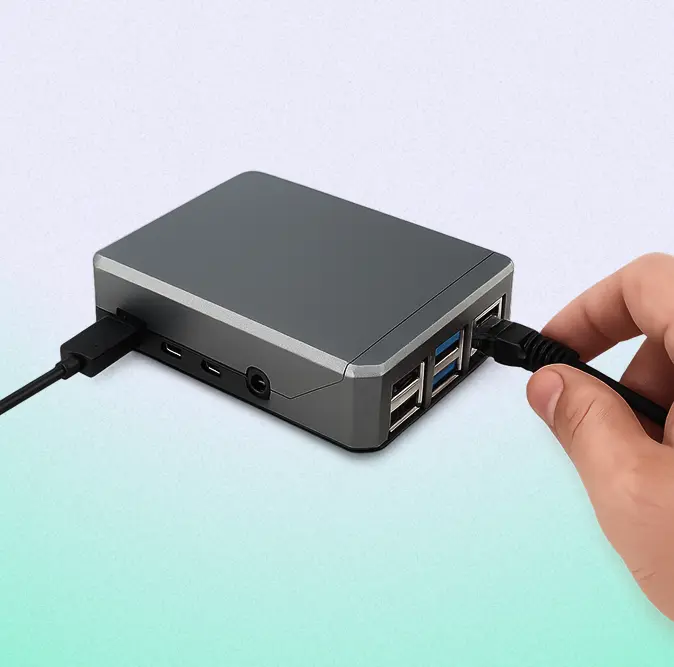
Fing Agent
Deploy on a Raspberry Pi, Docker container, or NAS for always-on Internet access control — schedules enforce themselves even when your computer is off.
What users say about Fing's wifi access control
Frequently asked questions
How do I block a device from my Wi-Fi?
Open Fing Desktop, find the device in your network list, and click Block. The device is immediately removed from your network and prevented from reconnecting — even if it knows your Wi-Fi password. No router configuration needed. If you are running a Fing Agent, you can perform the same action via the web app.
Can I schedule when devices can access the internet?
Yes. Fing lets you set recurring internet schedules for any device or profile on your network. Define the target device (or user), specific days and time slots — for example, no Internet on school nights after 9 PM — and Fing enforces them automatically.
Do I need to install anything on the devices I want to control?
No. Fing controls Internet access at the network level, so you don’t need to install software on the target devices. This means it works on any device — phones, tablets, gaming consoles, smart TVs — and can’t be bypassed by uninstalling an app.
What's the difference between Fing and app-based parental controls?
App-based tools require installation on each device and only control that single device. Fing works at the network level, controlling Internet access for any device on your Wi-Fi from one central dashboard — no per-device setup, no way to circumvent it by switching devices.
Do I need Fing Desktop or Fing Agent for Internet access control?
Yes — blocking devices and scheduling internet downtime require Fing Desktop (running on your computer) or Fing Agent (deployed on a Raspberry Pi, Docker, or NAS). Fing Mobile lets you review settings on the go, but cannot act as the control unit.
Take control of your network now
Download Fing Desktop, set up your account, and start managing internet access in minutes. Block devices, schedule downtime, and promote healthier screen habits.