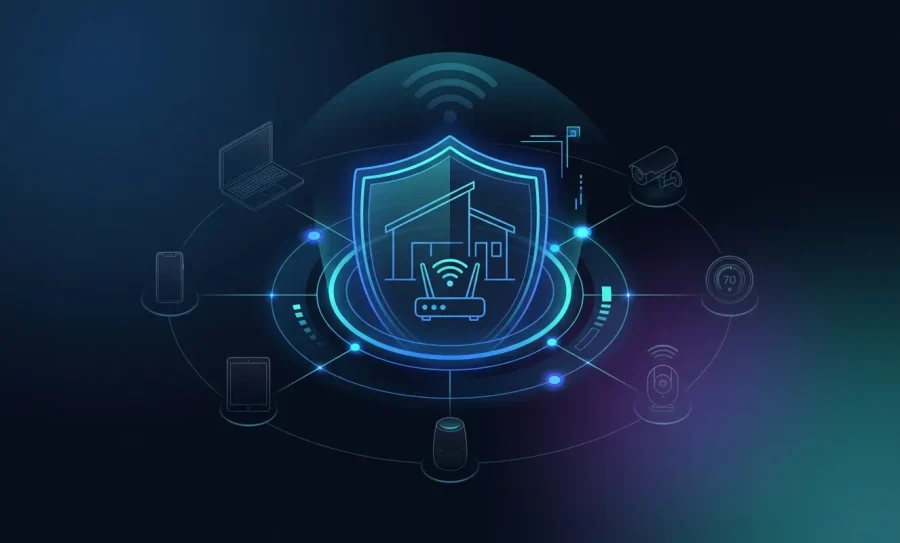
Your home network is the digital front door to your life. From remote work and online banking to smart home devices and streaming, everything runs through your Wi‑Fi. As our homes get more connected, they also become easier targets for online threats.
The good news? You don’t need to be a tech expert to stay safe. Home network cybersecurity is something anyone can understand and improve. Small steps can make a big difference, especially if you’re looking for cybersecurity for beginners tips that truly work.
At Fing, we’ve helped millions of people around the world protect their Wi‑Fi. Our tools – such as Fing Desktop and Fing Agent – are built to give everyday users simple, powerful visibility into their home networks. We analyze real‑world security trends every day, so the tips below are based on what actually works.
These 10 beginner‑friendly recommendations are practical, updated for 2026, and designed to help you feel more confident about your Wi‑Fi security. New to all of this? Start with our guide How to Secure Your Home Wi‑Fi, which walks through the real risks, the warning signs, and how to think about Wi‑Fi security in layers. Then come back here for the step-by-step actions.
🛡️ Want an easy way to monitor your network right now? Download Fing Desktop — it’s free and takes seconds to get started.
Quick Checklist Table
Here’s a quick overview of all 10 tips. Most take less than 5 minutes and require no technical skills. Click any tip to jump to the full explanation below.
| # | Security Tip | Difficulty | Time Needed |
|---|---|---|---|
| 1 | Change default router credentials | 🟢 Easy | 5 min |
| 2 | Rename your Wi-Fi network (SSID) | 🟢 Easy | 2 min |
| 3 | Update your router firmware | 🟢 Easy | 5–10 min |
| 4 | Set up a guest Wi-Fi network | 🟢 Easy | 5 min |
| 5 | Disable WPS and remote management | 🟢 Easy | 3 min |
| 6 | Enable firewalls on router and devices | 🟢 Easy | 5 min |
| 7 | Monitor connected devices with Fing | 🟢 Easy | 2 min |
| 8 | Secure all smart home (IoT) devices | 🟡 Medium | 15–20 min |
| 9 | Enable two-factor authentication (2FA) | 🟢 Easy | 5 min / account |
| 10 | Turn on automatic updates everywhere | 🟢 Easy | 5 min |
How to Improve Home Network Cybersecurity in 2026 (Beginner-Friendly Tips)
1. Change Default Router Credentials Immediately
Most routers come with default usernames and passwords like “admin/admin.” These are widely known, which makes them easy for attackers to guess.
Changing them is one of the simplest ways to improve your home network’s protection – one of the most important beginner cybersecurity tips you can take.
How to do it:
- Open a browser and enter your router’s IP address (often 192.168.1.1 or 192.168.0.1)
- Log in with the current credentials (usually printed on the router)
- Go to the “System” or “Administration” settings
- Create a strong new username and password
Also:
- Use WPA3 if available (WPA2 if not)
- Create a strong Wi‑Fi password using long phrases or random word combinations
- Avoid reusing passwords from other accounts
💡 Don’t know your router’s IP address? Fing can help you identify it quickly. Just run a network scan, navigate to the Device tab, and select your router to see it.
2. Rename Your Wi-Fi Network (SSID) Smartly
Your Wi‑Fi name may seem harmless, but default names can reveal the router’s brand or model – info that can help attackers. Choosing a neutral name is one of those simple security steps that makes your network less visible.
When choosing a name:
- Avoid personal info like your name or address
- Keep it neutral
- Skip joke or attention‑grabbing names (like TryToHackThis or similar)
These small changes reduce unwanted interest from potential attackers.
3. Update Your Router Firmware Regularly
Router updates fix bugs and security issues. Many people never update their router, which leaves gaps attackers can exploit.
What to do:
- Log in to your router
- Check the firmware or system update section
- Install available updates
- Enable automatic updates if your router supports them
Some routers don’t notify you when updates are available, so it’s a good idea to set a reminder to check manually every month or two.
💡 Fing Desktop can help by identifying your router model, so you can quickly check if the manufacturer has released any critical update. This makes staying secure much simpler and faster.
4. Set Up a Guest Wi-Fi to Increase Home Network Security
Creating a separate guest Wi-Fi keeps your main network safer. Guests will be isolated from your primary devices like laptops and smartphones. It’s a great example of basic Wi‑Fi protection anyone can implement.
But it’s not just for guests – connecting your smart devices (like IP cameras, thermostats, smart lights, and speakers) to the guest network is a smart move too. These devices often have weaker security, and segmenting them off reduces the risk they pose to your more sensitive devices like computers or phones.
Useful tips:
- Use a different password from your main network
- Keep the name generic
- Reboot the router if needed to apply changes
5. Disable WPS and Remote Management
Two common router features can weaken your home network cybersecurity:
- WPS: Makes connecting devices easier but is vulnerable to brute‑force attacks
- Remote management: Allows changing router settings from outside your home
Both are unnecessary for most people and safer when disabled. Here is how to do it:
- Log in to your router
- Look for “Wireless,” “Advanced,” or “Remote Management” sections
- Turn off WPS and remote access
Taking just a few minutes to disable these features can close major security loopholes and significantly improve your overall home network cybersecurity, helping protect your entire network from intrusion.
6. Enable Firewalls on Your Router and Devices
Firewalls act as a barrier between your devices and unwanted traffic, blocking unauthorized access while allowing legitimate communication. Most routers have a built-in firewall, and your computer, phone, or tablet likely does too.
Make sure:
- Your router’s firewall is enabled (usually under “Security” or “Firewall”)
- Device firewalls on Windows, macOS, iOS, and Android are turned on
If you use a security suite or antivirus, it may include an extra firewall – layering protection is helpful.
7. Monitor Devices on Your Network with Fing
One of the strongest habits you can build is simply knowing what’s connected to your Wi‑Fi. Fing Desktop makes this easy for beginners and advanced users alike.
With Fing you can:
- Spot unknown devices
- Get alerts when new devices join
- Enable automatic blocking for unknown devices
Most of these features are included in our Starter and Premium subscriptions, which give you even more control, insights, and protection.
8. Secure All Smart Home (IoT) Devices
Smart plugs, cameras, TVs, and speakers are convenient — but often less secure than phones or computers. To protect them:
- Change default passwords
- Update firmware regularly
- Disable remote access when not needed
- Review what devices are connected from time to time
Putting them on a guest network adds another layer of protection – a smart part of secure home Wi‑Fi practices.
9. Use Two-Factor Authentication (2FA)
Whenever possible, enable 2FA on all accounts tied to your home network – including your router’s admin panel, cloud storage, smart device apps, and any services that access your network remotely. Two-Factor Authentication adds a crucial extra layer of security by requiring a second form of verification beyond just your password.
Do this for:
- Router admin accounts
- Smart home apps
- Cloud services connected to your network
Use authentication apps rather than SMS when possible, as they’re more secure.
10. Turn On Automatic Updates Everywhere
Updates may feel annoying, but they’re one of the easiest and most effective ways to stay protected. Whenever a company discovers a security problem, they fix it through an update – so installing them helps close the door on attacks.
To keep things simple:
- Turn on automatic updates on phones, laptops, tablets, and smart devices
- Restart your devices when prompted
- Check your router for updates every month or two
This takes only a few minutes and dramatically improves your home’s protection. It’s one of the simplest cybersecurity for beginners practices you can follow daily – and one of the most reliable online safety tips overall.
Frequently Asked Questions About Home Network Cybersecurity
What is home network cybersecurity?
Home network cybersecurity refers to the practices, tools, and settings used to protect your home Wi-Fi network and connected devices from unauthorized access, data theft, and cyberattacks. It includes everything from setting strong passwords and updating firmware to monitoring connected devices and using firewalls. You don’t need to be a tech expert — most home network cybersecurity steps are simple and take just a few minutes.
Can someone hack my home Wi-Fi network?
Yes. If your router uses default credentials, outdated firmware, or weak encryption (like WEP or open networks), attackers can gain access relatively easily. Once inside your network, they can intercept traffic, steal personal data, or use your connection for malicious activity. Following the tips in this guide — especially changing default passwords, enabling WPA3, and monitoring your devices — significantly reduces this risk.
How do I know if someone is on my Wi-Fi without permission?
The easiest way is to use a network scanning tool like Fing. It shows you every device currently connected to your Wi-Fi, including the device name, brand, model, and MAC address. If you see something you don’t recognize, you can investigate further or block it immediately. Setting up alerts for new device connections means you’ll be notified automatically whenever someone joins your network.
Is WPA3 better than WPA2?
Yes. WPA3 is the latest Wi-Fi security standard and offers several improvements over WPA2, including stronger 192-bit encryption (vs. 128-bit), protection against brute-force password guessing through SAE (Simultaneous Authentication of Equals), and better security for open networks. If your router supports WPA3, you should enable it. If not, WPA2 is still acceptable — but avoid WEP or open networks, as they offer little to no protection.
Do I need a firewall on my home network?
Yes. Most routers have a built-in firewall that filters incoming traffic, and your devices (Windows, macOS, iOS, Android) have their own software firewalls that monitor outgoing traffic. Both should be enabled. A router firewall protects your network from external threats, while a device firewall catches suspicious activity from within — for example, if a device on your network is infected and trying to communicate with an external server.
What is the biggest threat to home network security?
The most common threats are weak or default passwords, outdated router firmware, and unsecured IoT devices. Many home network attacks exploit these basic vulnerabilities rather than sophisticated hacking techniques. That’s why the most effective cybersecurity for beginners strategy is simply to keep things updated, use strong unique passwords, and know what’s connected to your network at all times.
Stay One Step Ahead with Simple Tools
Home network cybersecurity isn’t complicated – and it doesn’t have to be overwhelming. Small actions, done consistently, provide strong protection. Reviewing your settings, keeping things updated, and staying aware of connected devices go a long way.
Tools like Fing Desktop help you monitor your network, receive alerts about suspicious activity, control Internet access and check for router vulnerabilities.
For 24/7 background protection, Fing Agent runs quietly on devices like Raspberry Pi or NAS, automatically watching for unusual behavior even when your computer is off.
With the right habits and helpful tools, anyone can keep their home network safe.